Instagram YouTube

Access Your Guardian Account on SchooLinks

         District 207 has provided the email tied to your InfiniteCampus account to SchooLinks so that you can have guardian access. The following instructions will help you log in. 

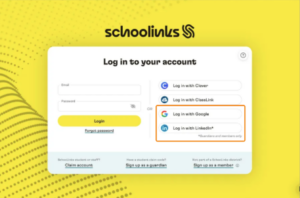
Go to app.schoolinks.com/login/membe

SchooLinks login page. An orange box highlights two single sign-on options: "Log in with Google" and "Log in with LinkedIn." A note below the box specifies these are for guardians and members only.


If you have a Google or LinkedIn email on file with the district, click Log in with Google or Log in with LinkedIn on the right-hand side of the login page, then select your connected Gmail account.


                                                                           OR
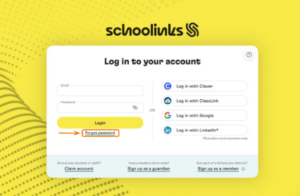
SchooLinks login page. An orange arrow and box highlight the "Forgot password" link located directly below the main yellow Login button.


If you do not have a Google email on file with the district, click “Forgot password” below the login button. Enter in the email on file with the district and click Reset password.
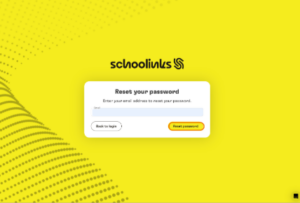


SchooLinks "Reset your password" page. An orange box highlights the "Reset password" action button, with an input field above it for the user to enter their email address.


An email will be sent to create a SchooLinks password. Follow the instructions to create your password, then return to the login page and log in via email and password.


Once logged in, your dashboard will look like this. Click on the sections on the navigation bar on the left-hand side to start exploring!
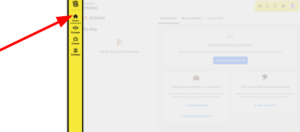
 

SchooLinks Member Home dashboard. A large red arrow points to the "Home" icon (a house symbol) at the top of the vertical yellow navigation sidebar on the left side of the screen.


Colleges

        The Colleges category gives Guardians access to the following pages:
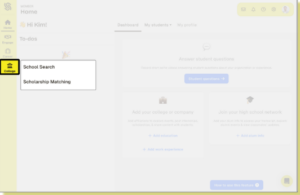
SchooLinks dashboard. The "Colleges" icon in the sidebar is highlighted with a black border, opening a sub-menu. The sub-menu displays two options: "School Search" and "Scholarship Matching."


School Search

    Through School Search you can search for colleges and learn all about them from the school’s profile page.


  1.   Click Colleges in the side navigation bar, then select School Search.
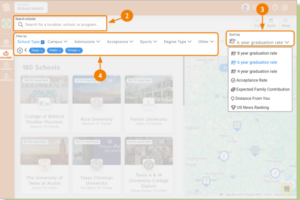
  2. Search for a location, school, or program
  3. Sort results to determine the order in which you want schools presented
  4. Use filters to narrow the list of colleges according to attributes
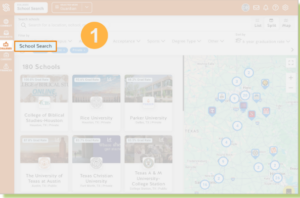
 

SchooLinks School Search page. A large orange circle with the number "1" is positioned next to a box highlighting the "School Search" header at the top of the college directory results.


SchooLinks directory page showing search and filter tools. An orange circle with the number "2" points to the search bar. Number "3" points to a "Sort by" dropdown menu. Number "4" points to a "Filter by" section containing buttons for School Type, Campus, and Admissions.


                         Learn more about how your student can use the School Search tool in SchooLinks 👉 Student: How to Use School Search