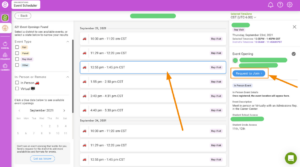

Step 1:
We use SchooLinks to schedule college rep visits. You’ll need to request to become a member on the link at the bottom right hand corner. There is a series of screenshots and more details below to help you. We hope that you also consider visiting the other 2 high schools in our district, Maine East and Maine West. They also use SchooLinks for college rep visits.
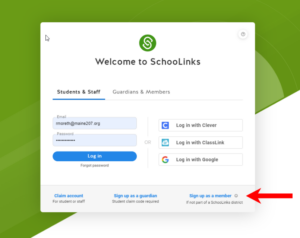
Step 2: Accessing Event Scheduler
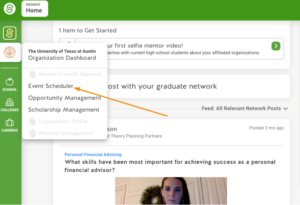
From your feed page, click on your Organization’s logo.
Then, you can either click on your Organization Dashboard, or click Event Scheduler.
If you clicked on your Organization Dashboard in the last step, you would now click Schedule an Event.
Step 3: Request to Attend Event
Click Find New Events at the top of the page.
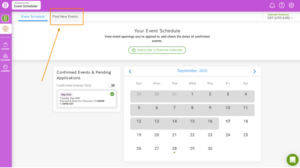
You will then see a list of school districts that currently have events available to join. If districts have multiple different campuses with events, you can view these different campuses after clicking on the district. Use the left side menu to filter by state.
Click on the district, and specific school if applicable, to see all event openings. Use the left side menu to filter by event type, in-person or remote, and select specific days in the calendar.
Click the event you wish to attend, and click Request to Join.